Getting Started
Introduction
What is Jondob Multiplayer Backend?
Jondob Multiplayer Backend (JMB) is a complete multiplayer backend built in Go. It is highly performant and engine-agnostic, and it comes with direct integration for Godot 4. You have access to source code, and it is one Go server binary you run yourself.
Out of the box you get account management (Steam, email/password, and more login options to be added in the future), lobbies with a full match-start flow, chat and direct messages, friends, blocking, synced player data, world data, generic data, and authoritative game-server orchestration in two modes: world and matches.
The server runs on any machine you control — a VPS, your own PC, whatever you want. Everything is stored on that machine, and everything is completely configurable by editing a text file.
This guide takes you from an empty project to a running multiplayer game: SDK installed, server configured, builds exported, and your first match running.
Godot Setup
Install JMB in Godot
- Unzip the JMB pack into your Godot project. The recommended path is
res://addons/jmb/or any location under your project root. - The pack contains the full SDK, a sample game, and premade UI for login, lobbies, chat, and friends.
Configure your project
Key configuration files
Go to the addons/01_jg_lib/packs/jmb/ directory, as shown in the screenshot:
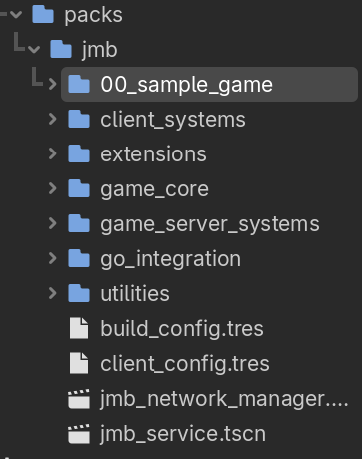
Then duplicate build_config.tres and client_config.tres, and place them in a directory of your choosing. Ideally, create your own directory that keeps everything related to your game in one place.
| File | Purpose |
|---|---|
build_config.tres | A helper resource you can use to build your game quickly using specific configuration (scenes, export presets, output directories). |
client_config.tres | The main configuration file that controls how the Godot client connects to the Go server. Typically, you host your Go server on a VPS (such as DigitalOcean or Linode), and this is where you set the connection details. |
Core scenes configuration
jmb_service.tscn is the key file where all the core logic lives. You will only need to interact with it during the setup process, and you only need to change one thing:
- Create an inherited scene from
jmb_service.tscnand save it to disk, ideally right next to the config files. - Change the config variable so that it points to your duplicated
client_config.tres.
jmb_network_manager.tscn is the file you will interact with most of the time. You can use it as-is, or follow the recommended flow:
- Create an inherited scene based on
jmb_network_manager.tscn. - Create a new script that extends
JMB_NetworkManager. - In your
client_config.tres, assign the new network manager into Core Settings.
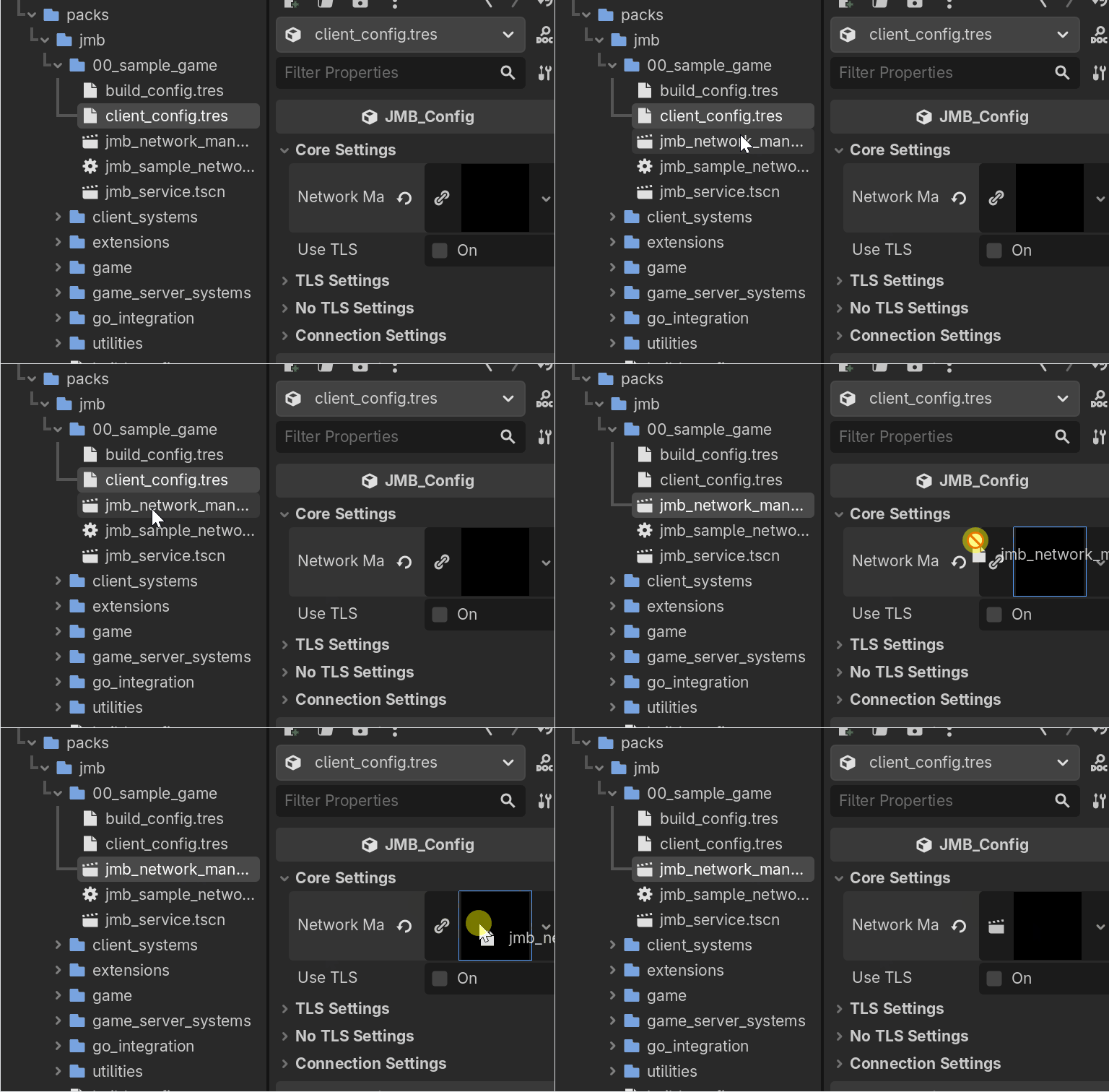
Finally, set the new service scene you created as an autoload: Project → Project Settings → Globals → Autoload.
JMB_ServiceController.get_instance() gives you the running service.Creating core scenes
You need to set up two scenes in the network manager to act as entry and exit points for online gameplay:
| Scene | Purpose |
|---|---|
| Online Scene | The first scene that runs when the player is networked. This is where your match or world begins. Once you reach this scene, the player is online in terms of gameplay. |
| Offline Scene | The scene all clients return to when the game is over — whether they disconnect from a world or from a match. |
sample_gameplay and sample_server_intro contain sample scenes that you can reference and assign through the network manager.Build & Export
JMB uses a single Godot project for both client and server. You export two builds from the same project using export presets.
Export presets
Make sure you have export templates installed in Godot (Editor → Manage Export Templates). Then set up your export presets in Project → Export.
Build using JMB_BuildConfig
Select your JMB_BuildConfig resource and configure it to point to the scenes, output directory, and export preset name.
Export presets are the presets you define in the Export window. The build system uses these for creating builds.
Server Setup & Run
Install Go
JMB's server is written in Go. Install Go 1.25 or later from go.dev/doc/install.
Verify the installation:
go version
If it prints version 1.25 or above, you are ready to proceed.
Configure the Go server
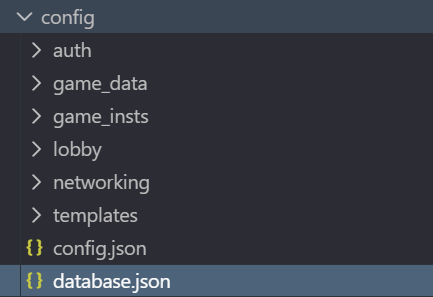
In the Go server source code, the only directory you need to work with is config/. It contains everything you can configure.
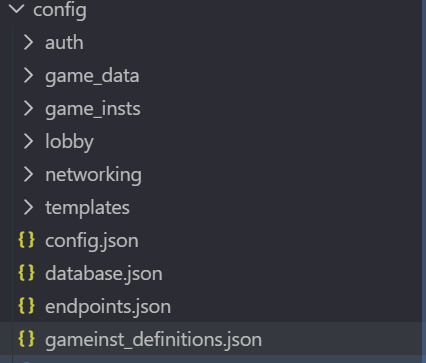
config.json
Start with config.json, which defines the server's listen addresses:
{
  "public": {
    "address": "0.0.0.0:8080"
  },
  "internal": {
    "address": "127.0.0.1:25001"
  }
}
If you look at client_config.tres in Godot, you will find that these values match. They must be exactly equal, or the client will not be able to connect.
endpoints.json
Configure which login endpoints are available:
{
  "login_with_email": {
    "enabled": true,
    "confirmed": true
  },
  "login_with_id_t": {
    "enabled": true,
    "confirmed": true
  },
  "login_with_steam": {
    "enabled": false,
    "confirmed": true
  }
}
To support a platform, set its enabled to true. The confirmed field is an extra safety measure — if it is false, the server will log a warning about that endpoint.
login_with_id_t is a special endpoint with no protection — anyone can enter any string and log in with it. No password, no validation. It is intended for debugging and development builds, so you do not need to create accounts during playtesting.gameinst_definitions.json
This file tells the Go server where your game executable lives, so it knows how to launch the Godot server build:
{
  "all_game_entries": {
    "gk_main_world_entry": {
      "executable": "C:/path/to/your/GameServer.exe",
      "display_name": "Sample Game"
    }
  },
  "port_range_start": 9000,
  "port_range_end": 19000
}
Set the executable field to the absolute path of your exported Godot server build on your operating system.
Run the Go server
Open a terminal in the directory that contains the Go server source, then run:
go build .
go run .
That's it. If you see the following output, the server is running:
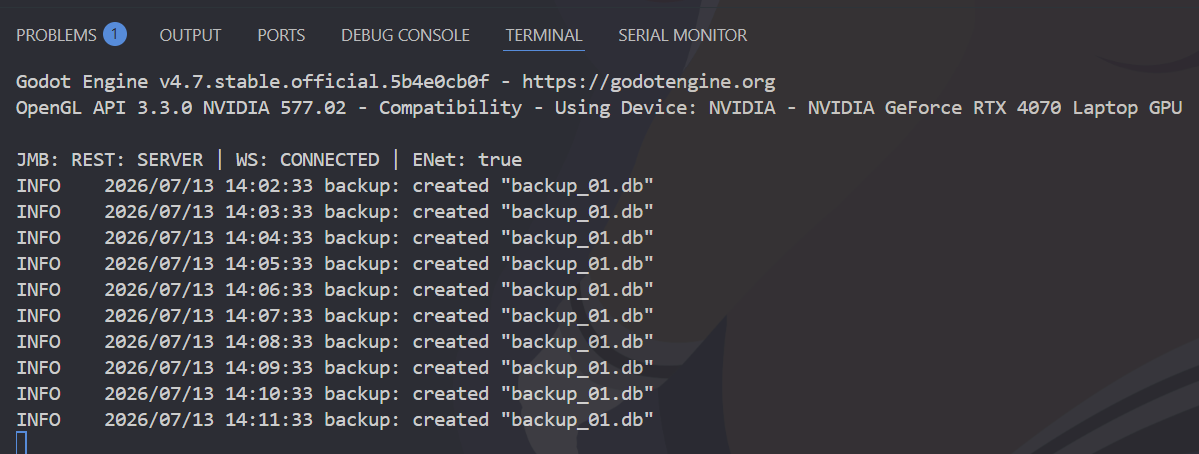
INFO  lobby: loaded 8 lobby var(s), 1 member var(s)
INFO  backup: routine started
INFO  ws router started
INFO  ws hub started
INFO  lobby started
INFO  JMB :: Jondob Multiplayer Backend
INFO  internal listener running on 127.0.0.1:25001
INFO  public listener running on 0.0.0.0:8080
Run the game
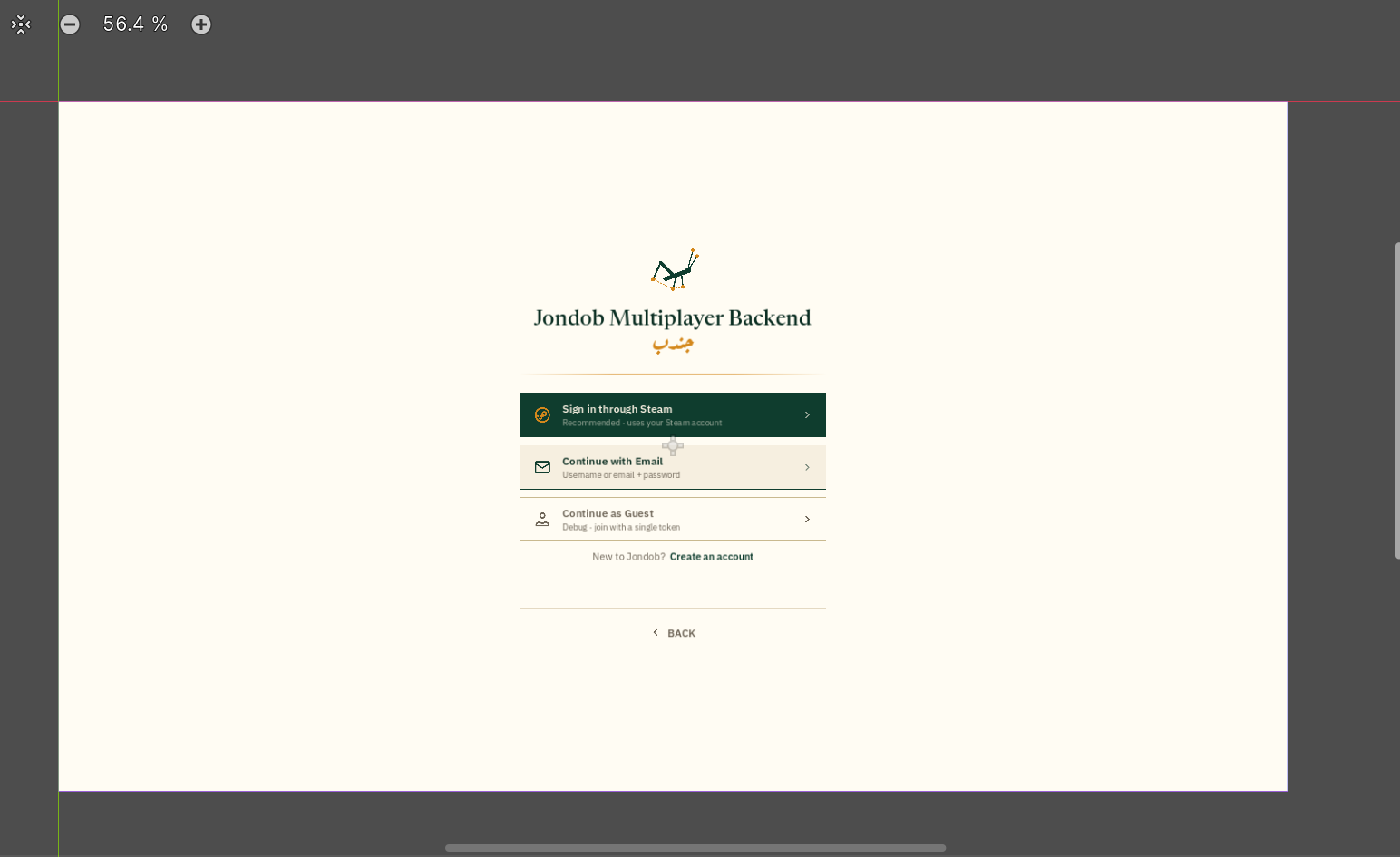
The server is running and everything is configured. Launch the client, and you are live.
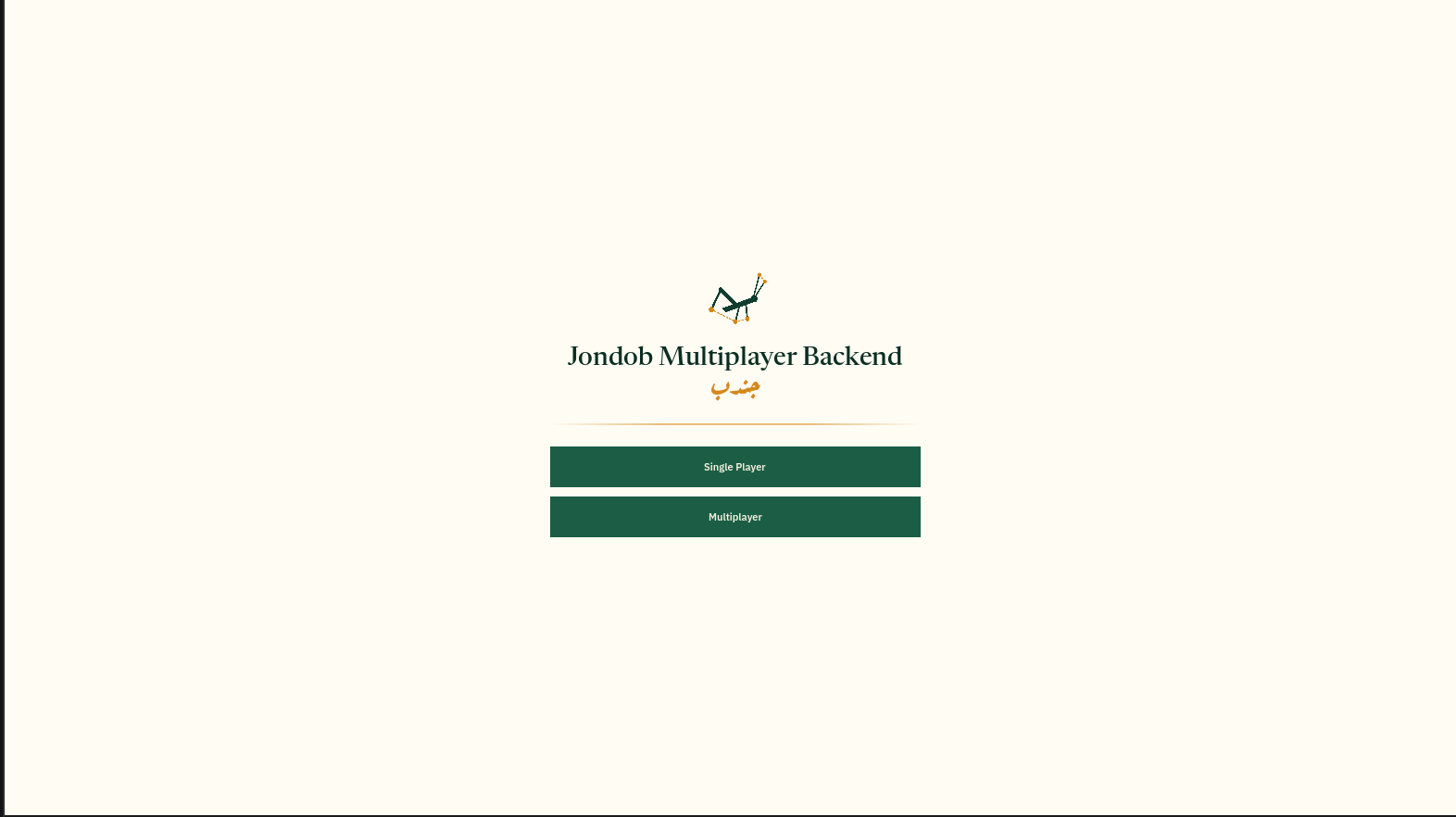
The premade login UI supports Steam, email/password, and debug token login out of the box:
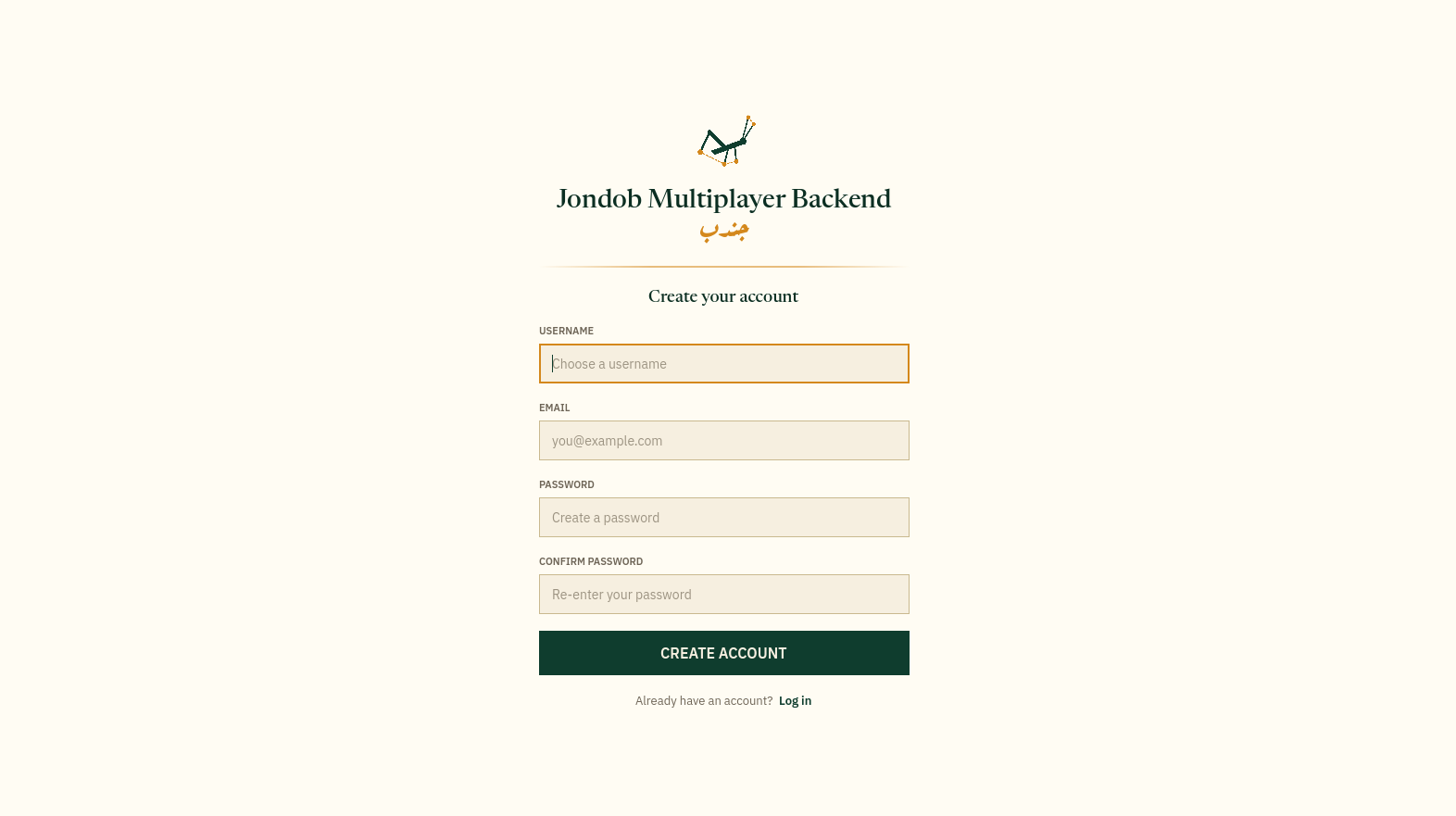
Create an account, log in, and enter the lobby:
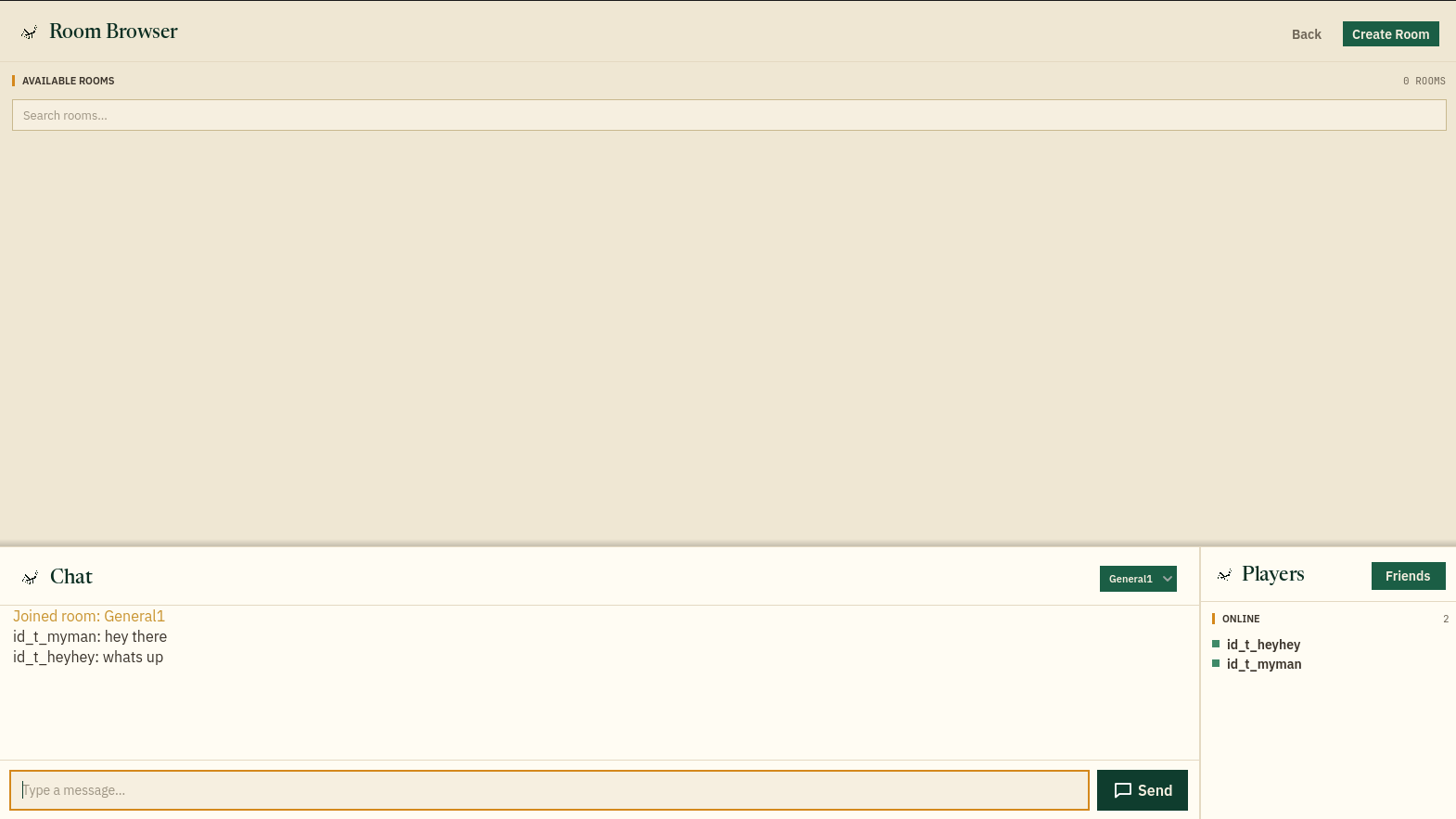
The room browser shows available rooms, a chat panel, and online players:
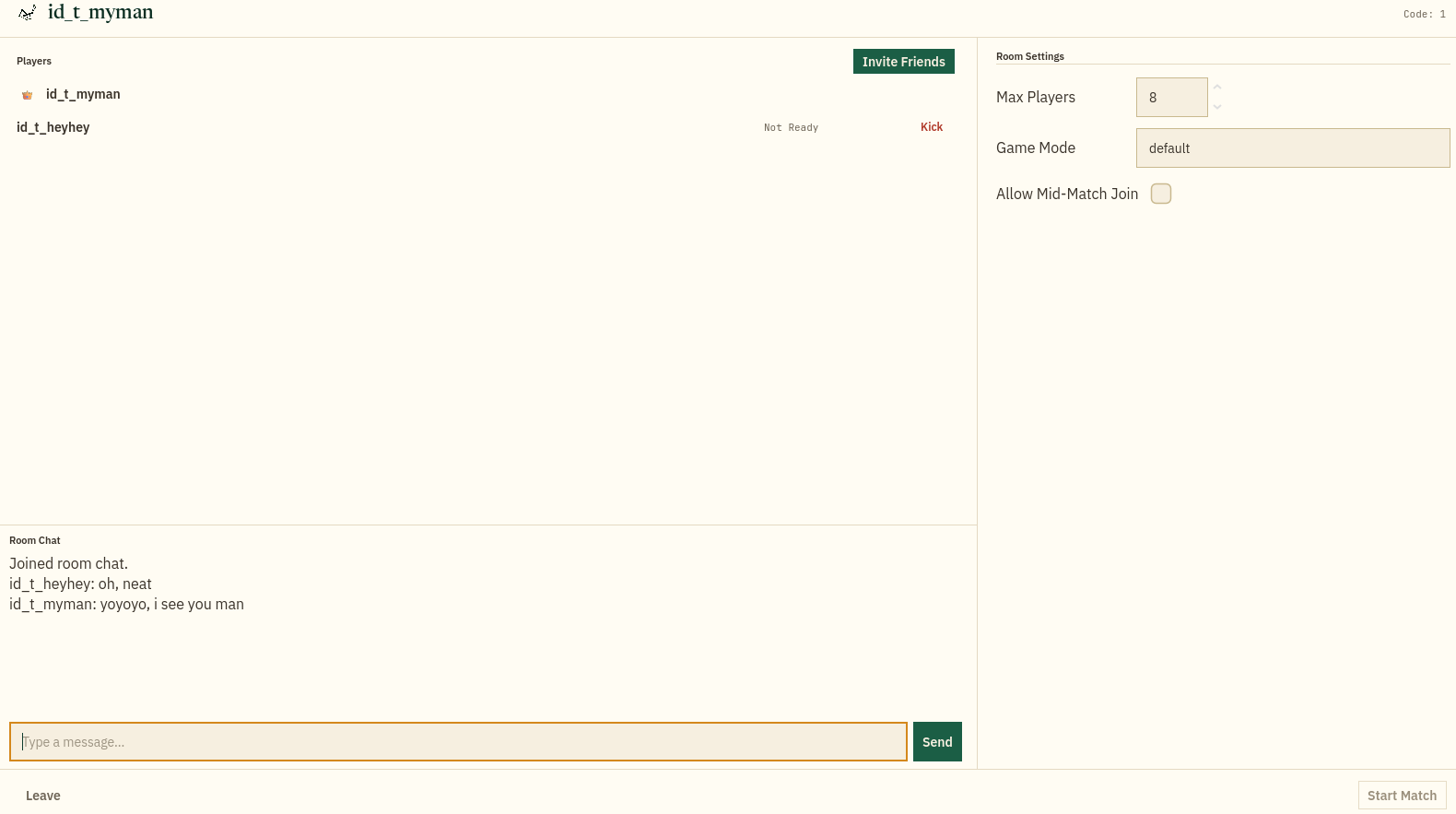
Inside a room, you can see the player list, room settings, room chat, and the Start Match button:
Game Data
JMB supports the core plain data types: bool, string, float. Whether you want to give players XP, track lifetime kills across all matches, or check whether a monument in a persistent world has been destroyed — it all works through GenVar config files.
Data configuration files
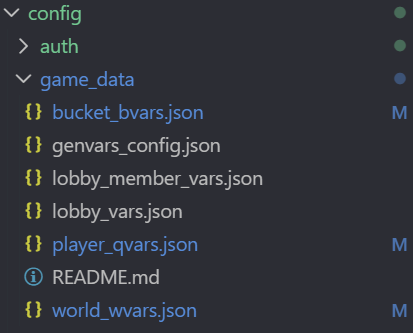
Modify one of these files depending on your needs, by adding or removing variables:
| File | Purpose |
|---|---|
bucket_bvars.json | Variables not tied to any game world or player. Useful for async multiplayer where only data moves around, or for shared group data like guild stats. |
lobby_member_vars.json | Data that players carry alongside themselves from the lobby into the match — for example, player color, faction, or team. |
lobby_vars.json | Variables relevant to a lobby room: the active map, max players, game mode, and so on. |
player_qvars.json | Persistent player data: XP, level, coins, tokens, unlocks, and any per-player progress. |
world_wvars.json | Data local to a persistent world — world state, event flags, and server-wide toggles that belong to that world and no one else. |
Persistent worlds
If your game is world-based or uses a persistent world that runs forever and players can join and leave freely, open persistent_worlds.json:
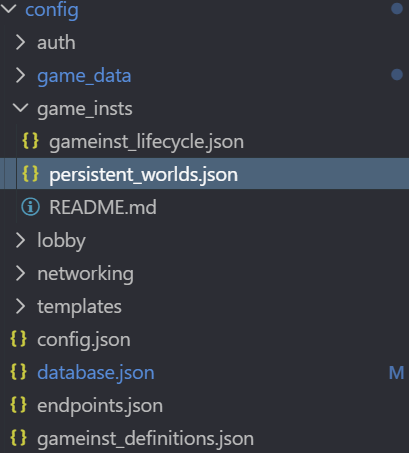
{
  "world_spawn_interval_seconds": 2,
  "worlds": [
    {
      "game_key": "gk_main_world_entry",
      "game_id": "world_main",
      "display_name": "Main World",
      "enabled": false,
      "max_players": 64
    }
  ]
}
The key variables you need to modify:
game_key— references the key fromgameinst_definitions.json. This tells the world which executable to launch.enabled— set this totrue, launch the Go server, and you will have a world that any player can join without any further changes.max_players— the maximum number of concurrent players in that world.
Storage & Backups
Database
JMB supports both SQLite and Postgres. By default it uses SQLite — the database is a single file stored at data/jmb.db.
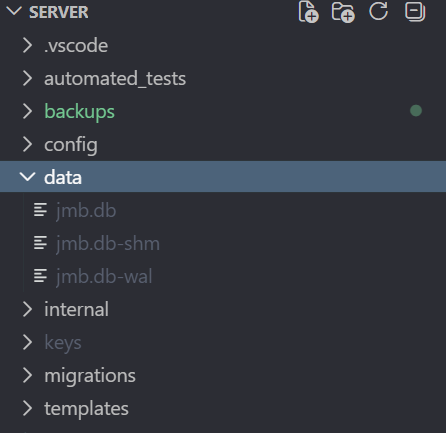
You can change the database name, save location, or switch between Postgres and SQLite through database.json:
{
  "target_db": "sqlite",
  "entries": [
    {
      "driver_name": "sqlite",
      "connection_string": "file:data/jmb.db?_pragma=..."
    },
    {
      "driver_name": "postgres",
      "connection_string": "..."
    }
  ]
}
To rename your database, modify the connection string — for example, changing data/jmb.db to data/mySuperCoolGame.db will create a database with that name instead.
Automatic backups
If you use SQLite, backing up is straightforward: the entire database is a single file. You can copy jmb.db anywhere you want as a manual backup. JMB also provides an automatic backup system.
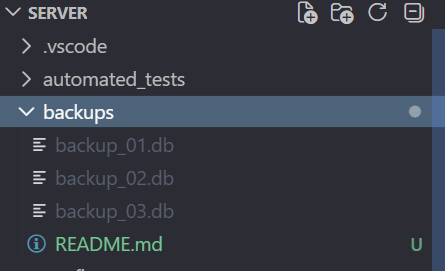
Configure automatic backups in the database.json file:
"can_use_automatic_backups": true,
"backup_interval_minutes": 1440,
"max_backups": 10,
"backup_dir": "backups"
| Field | Meaning |
|---|---|
can_use_automatic_backups | Enable or disable the automatic backup routine. |
backup_interval_minutes | How often a backup is taken (default: every 24 hours). |
max_backups | Maximum number of backup files to keep. Oldest are rotated out. |
backup_dir | Directory where backups are stored. |
Backups are named in ascending order: backup_01 is always the oldest. For Postgres, backups are stored as .sql files instead of .db files.
Calling the Go API
The JMB SDK talks to the Go server through two channels: a REST client for one-off HTTP requests and a WebSocket client for real-time, persistent communication. Both are accessed through JMB_ServiceController, the singleton that holds all core service references.
Getting the service reference
Everything starts with JMB_ServiceController.get_instance(). From the returned service you can reach the REST client, WS client, and user manager.
var service: JMB_ServiceController = JMB_ServiceController.get_instance()
var rest_client: JMB_RESTClient = service.get_rest_client()
var ws_client: JMB_WSClient = service.get_ws_client()
var user_manager: JMB_UserManager = service.get_user_manager()
Logging in
Login is handled by JMB_UserManager. Call login() with a username or email and a password. The result comes back through the on_login_completed signal.
var service: JMB_ServiceController = JMB_ServiceController.get_instance()
var user_manager: JMB_UserManager = service.get_user_manager()

user_manager.on_login_completed.connect(_on_login_completed)
user_manager.login("player@example.com", "my_password")

func _on_login_completed(result: JMB_RequestResult) -> void:
	if result.status == JMB_RequestResult.Status.OK:
		print("Logged in successfully")
	else:
		print("Login failed")
JMB_UserManager also provides login_with_steam(ticket) and login_with_id_t(external_id) for Steam and external-ID-token login. Registration uses register(username, password, email) and emits on_register_completed.Logging out
Call logout() on the user manager. It sends a logout request to the server, clears local credentials, and emits on_logout_completed. After logout you typically return to the main menu.
var user_manager: JMB_UserManager = JMB_ServiceController.get_instance().get_user_manager()
user_manager.logout()
get_tree().change_scene_to_file("res://scenes/main_menu.tscn")
Using the REST client
The REST client handles all HTTP calls to the Go server. Every method comes in two forms: a callback version and an async version that you can await.
var rest_client: JMB_RESTClient = JMB_ServiceController.get_instance().get_rest_client()

# Check server health (async)
var health_result: JMB_RequestResult = await rest_client.check_health_async()
print("Server is reachable: ", health_result.status == JMB_RequestResult.Status.OK)

# Read player variables (async)
var keys: Array[String] = ["score", "level"]
var read_result: JMB_RequestResult = await rest_client.read_qvars_async(account_id, keys)
check_health(callback)) and an async variant (e.g. check_health_async()). The async versions return JMB_RequestResult and are easier to use with await.Using the WS client
The WebSocket client maintains a persistent connection to the server. It handles lobby rooms, chat, match events, and any custom real-time messaging. You send typed envelopes and receive responses through signals or await.
var ws_client: JMB_WSClient = JMB_ServiceController.get_instance().get_ws_client()

# Listen for connection events
ws_client.on_ws_opened.connect(_on_connected)
ws_client.on_ws_closed.connect(_on_disconnected)

# Subscribe to a message category
await ws_client.subscribe_to_category_async("lobby")

# Send a custom envelope and await the response
var envelope: JMB_WSOutEnvelope = JMB_WSOutEnvelope.new()
var response: JMB_WSInEnvelope = await ws_client.send_envelope_async(envelope)
JMB_LobbyAdapter, JMB_LobbyRoomAdapter, JMB_ChatAdapter — that wrap envelopes and manage state for you. Use the WS client directly only for custom server-side message types.Quick Reference
A summary of the most important calls available through the REST client and the WebSocket adapters.
REST client calls
All methods below are on JMB_RESTClient. Each has a callback and an _async variant. Only the async signatures are listed.
Auth & account
| Method | Description |
|---|---|
check_health_async() | Ping the server to verify it is reachable. |
register_async(username, password, email) | Create a new account and auto-login. |
login_async(identifier, password) | Log in with email or username. |
login_with_id_t_async(external_id) | Log in with an external ID token. |
login_with_steam_async(ticket) | Log in with a Steam auth ticket. |
logout_async() | Invalidate the session on the server. |
refresh_async() | Refresh the auth token. |
who_am_i_async() | Return the current session's account info. |
change_password_async(current, new) | Change the account password. |
change_email_async(current_password, new_email) | Change the account email. |
Profile
| Method | Description |
|---|---|
get_my_profile_async() | Fetch the logged-in player's profile. |
update_profile_async(display_name) | Update the display name. |
get_other_profile_async(account_id) | Fetch another player's profile by account ID. |
find_player_by_friendcode_async(code) | Look up a player by friend code. |
regenerate_friendcode_async() | Generate a new friend code for the current account. |
Player, world & bucket variables
| Method | Description |
|---|---|
read_qvars_async(account_id, keys) | Read player variables (QVars) by key list. |
write_qvars_async(account_id, vars) | Write player variables. |
read_wvars_async(world_id, keys) | Read world variables (WVars) by key list. |
write_wvars_async(world_id, vars) | Write world variables. |
read_bvars_async(bucket_id, keys) | Read bucket variables (BVars) by key list. |
write_bvars_async(bucket_id, vars) | Write bucket variables. |
Friends & blocking
| Method | Description |
|---|---|
send_friend_request_async(account_id) | Send a friend request to another player. |
accept_friend_request_async(account_id) | Accept a pending friend request. |
cancel_friend_request_async(account_id) | Cancel a sent or decline a received friend request. |
remove_friend_async(account_id) | Remove someone from the friends list. |
block_player_async(account_id) | Block a player. |
unblock_player_async(account_id) | Unblock a player. |
get_friends_list_async() | Fetch the full friends list. |
get_pending_friend_requests_async() | Fetch pending incoming/outgoing requests. |
get_blocked_players_async() | Fetch the blocked players list. |
Leaderboards & chat
| Method | Description |
|---|---|
get_lb_entries_async(var_key, limit, offset, sort) | Fetch a page of leaderboard entries. |
get_lb_around_async(var_key, account_id, count, sort) | Fetch leaderboard entries around a specific player. |
get_lb_position_async(var_key, account_id, sort) | Get a player's position on a leaderboard. |
get_chat_rooms_async() | List available chat rooms. |
WebSocket adapter calls
These methods live on the adapter classes, not on JMB_WSClient directly. The adapters are found via groups at runtime.
JMB_WSClient (core)
| Method / Signal | Description |
|---|---|
send_envelope_async(envelope) | Send a WS envelope and await the response. |
subscribe_to_category_async(category) | Subscribe to a message category (e.g. "lobby"). |
unsubscribe_from_category_async(category) | Unsubscribe from a message category. |
on_ws_opened | Signal — emitted when the WebSocket connects. |
on_ws_closed(reason) | Signal — emitted when the WebSocket disconnects. |
on_ws_message_received(envelope) | Signal — emitted for every incoming WS message. |
on_failed_to_reconnect | Signal — emitted when reconnection attempts are exhausted. |
JMB_LobbyAdapter (room browsing)
| Method / Signal | Description |
|---|---|
list_rooms_async() | Fetch all lobby rooms from the server. |
create_room_async(vars) | Create a new room with the given settings. |
join_room_async(room_id, password) | Join an existing room (password can be empty). |
on_rooms_updated(rooms) | Signal — room list refreshed (polled automatically). |
JMB_LobbyRoomAdapter (inside a room)
| Method / Signal | Description |
|---|---|
leave_room_async() | Leave the current room. |
ready_toggle_async(is_ready) | Toggle the local player's ready state. |
start_match_async() | Request match start (host only). |
kick_async(account_id) | Kick a player from the room (host only). |
setting_change_async(key, value) | Update a single room setting. |
settings_change_async(settings) | Update multiple room settings at once. |
migrate_host_async(account_id) | Transfer host to another player. |
on_room_joined(result) | Signal — local player entered a room. |
on_room_left() | Signal — local player left the room. |
on_room_state_changed(room, is_host) | Signal — room state updated (members, settings, host). |
on_kicked() | Signal — local player was kicked. |
on_match_start_initiated(countdown) | Signal — match countdown started. |
on_match_canceled() | Signal — match start was canceled. |
on_ready_to_enter_gameinst(port) | Signal — game instance is ready, connect on this port. |
JMB_ChatAdapter (messaging)
| Method / Signal | Description |
|---|---|
send_message(context) | Send a chat message or DM (pass a JMB_CommContext). |
on_message_received(context) | Signal — incoming chat message or DM. |
on_room_members_updated(members) | Signal — chat room member list changed. |
on_online | Signal — chat system connected. |
on_offline | Signal — chat system disconnected. |
JMB_UserManager (auth state)
| Method / Signal | Description |
|---|---|
login(identifier, password) | Log in with email or username. |
register(username, password, email) | Register a new account and auto-login. |
logout() | Log out and clear local credentials. |
get_account_id() | Return the logged-in account ID. |
get_display_name() | Return the logged-in player's display name. |
get_status() | Return the current UserState (DISCONNECTED, CONNECTING, CONNECTED). |
on_login_completed(result) | Signal — login finished (check result.status). |
on_register_completed(result) | Signal — registration finished. |
on_logout_completed | Signal — logout finished, credentials cleared. |
Network manager overrides
Your script extends JMB_NetworkManager (see part 2), and these are the callbacks you can override. All of them are optional no-ops by default — override only what you need. Server means it fires on the game-server build, Client on player builds, Both everywhere.
JMB_NetworkManager
| Override | Description |
|---|---|
_i_on_self_server_started() | Server — the ENet server is listening and the Go handshake completed; the instance is registered and ready for clients. Initialize server-side game state, spawn world objects, start server-only systems. |
_i_on_self_server_stopped() | Server — the game instance is shutting down. Persist match results, clean up server-side resources. |
_i_on_client_verified(client) | Server — a client passed identity verification and joined the roster. Spawn the player's character, send initial state, apply permissions. |
_i_on_self_connected_to_server() | Client — the ENet connection succeeded; verification is still in flight. Show a loading screen, disable input. |
_i_on_self_connection_failed() | Client — the initial connection attempt failed (bad address, port unreachable, server full). Show an error dialog, offer retry, return to the menu. |
_i_on_self_server_disconnected() | Client — an established connection was lost. Show a disconnect message, save local state; if an offline scene is set, it loads after this returns. |
_i_on_player_joined(peer_id) | Both — any peer joined the ENet session. On the server the peer is still unverified here — use _i_on_client_verified() for post-verification logic. |
_i_on_player_left(peer_id) | Both — any peer left the session. On the server the roster is already updated and reported to the Go backend. |
_i_on_clients_synced() | Both — the verified client roster synchronized. Refresh player lists, update scoreboards, check if enough players are present. |
_i_on_before_scene_changed(old_scene, new_scene, old_data, new_data) | Both — a networked scene change is about to begin; the old scene is still loaded. Save transient state, despawn objects, show a loading overlay. |
_i_on_scene_changed(new_scene, scene_data) | Both — the networked scene change completed and all clients confirmed loading (or timed out). Spawn gameplay objects, start timers, enable input. |
_i_on_game_started(config) | Both — the session began via the match or world controller; the config carries host id, initial members, and room genvars. Awaitable — the on_game_started signal fires after it returns. Initialize game-mode logic, team assignments. |